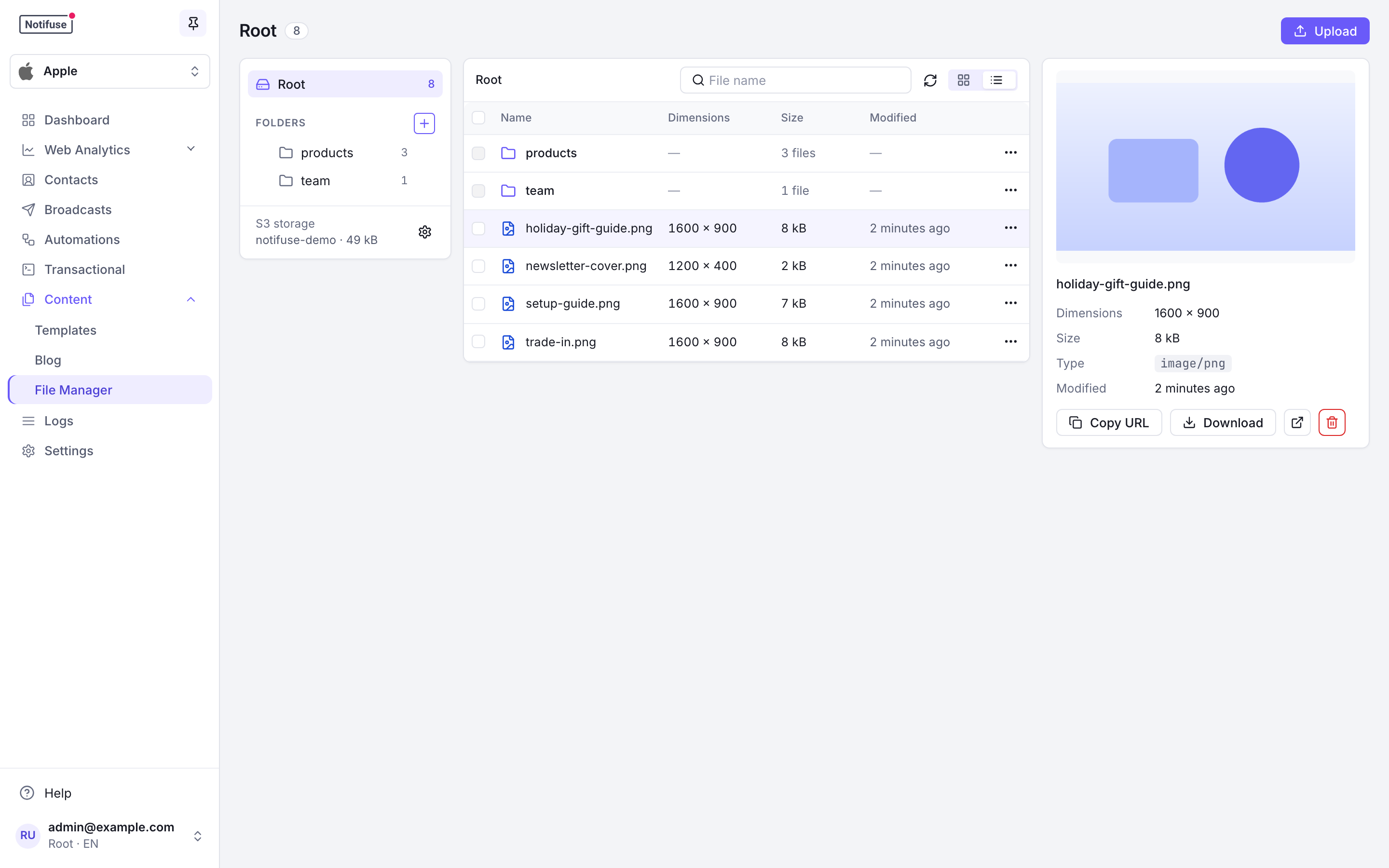
S3 Storage Configuration
Configure your S3-compatible storage with these settings:
- S3 Endpoint: Your S3-compatible storage endpoint URL
- S3 Access Key: Access key for authentication
- S3 Secret Key: Secret key for authentication
- S3 Bucket: Bucket name where files will be stored
- S3 Region: Storage region (e.g., us-east-1)
CDN Configuration
CDN Endpoint
- Purpose: URL of the CDN that caches your files
- Benefit: Faster file delivery and reduced bandwidth costs
- Optional: CDN configuration is not required but recommended
URL Customization
When a CDN endpoint is configured, file URLs in your email templates will use the CDN URL instead of the direct S3 URL for optimized delivery.
CORS Configuration
To allow the file manager to upload files directly from your browser, you need to configure CORS (Cross-Origin Resource Sharing) on your storage bucket.
Cloudflare R2 / AWS S3
Create a CORS policy with the following configuration:
[
  {
    "AllowedOrigins": ["*"],
    "AllowedMethods": ["GET", "POST", "HEAD", "DELETE", "PUT"],
    "AllowedHeaders": ["*"]
  }
]"*" in AllowedOrigins with your Notifuse console URL for better security.Google Cloud Storage
For GCS, use the gsutil command with a JSON configuration file:
[
  {
    "origin": ["*"],
    "method": ["GET", "POST", "HEAD", "PUT", "DELETE", "OPTIONS"],
    "responseHeader": ["Content-Type", "*"]
  }
]
Apply the CORS configuration:
gsutil cors set cors.json gs://your-bucket-nameSupported Storage Providers
Files can be uploaded to any S3-compatible storage service:
- Amazon S3
- Cloudflare R2
- DigitalOcean Spaces
- Wasabi
- MinIO
- Backblaze B2
- Google Cloud Storage (S3 API)
Self-Hosted S3 Option
If you prefer not to use cloud storage providers, you can run your own S3-compatible storage server using our self-hosted solution:
Self-Hosted S3 Storage
A lightweight, Docker-based S3-compatible storage server perfect for self-hosting Notifuse without external dependencies.
This option is ideal for:
- Air-gapped or offline environments
- Development and testing
- Users who want full control over their data
- Avoiding cloud provider costs
File Usage
Once configured, uploaded files can be used in:
- Email template images
- Attachments
- Brand assets (logos, headers)
- Any media content in your email campaigns
Limits
The file manager lists the first 10,000 files of a bucket. In a larger bucket, folder counts, total size and search only cover those files; the other files are still stored and still work in your emails.
Template Editor Integration
The visual email editor provides seamless access to your file manager:
- Modal Access: File manager opens in a modal while creating templates
- Direct Integration: Select and insert files directly from the editor
- Real-Time Upload: Upload new files without leaving the template editor