Common Use Cases
- Password Reset
- Order Confirmation
- Welcome Email
- Account Deletion
- Purchase Receipt
- Shipping Notifications
- Account Verification
- Payment Confirmations
Key Features
Automatic Contact Management
- Contact Upsert: Contacts are automatically created or updated before sending
- Profile Enrichment: Template data is automatically merged with existing contact profile information
- Data Consistency: Ensures contact information is always current
Updating the contact this way requires the Contacts write permission — see Permissions.
Template Data Enrichment
When you send a transactional email, Notifuse automatically:
- Looks up the contact by email address in your workspace
- Merges your API data with the existing contact profile
- Enriches the template with the complete contact information
- Sends the personalized email with all available data
Example: If your API sends {"order_id": "12345"} but the contact profile contains {"first_name": "John", "last_name": "Doe"}, the template will have access to both the order data and the contact’s full profile.
Deduplication with External ID
- Prevent Duplicates: Use
external_idto prevent sending the same notification multiple times - Idempotent Requests: Notifications with the same
external_idwill only be sent once - Custom Identifiers: Use your own unique identifiers (order IDs, event IDs, etc.)
Example: Setting external_id: "order-12345" ensures that even if your system sends the same order confirmation multiple times, the email will only be delivered once.
Email Delivery Options
Configure email routing with flexible options:
- From Name: Override the default sender display name
- Subject: Override the template subject line (supports Liquid templating)
- Reply-To: Set custom reply-to addresses
- CC: Add carbon copy recipients
- BCC: Include blind carbon copy recipients
- Attachments: Attach files to emails (PDFs, images, documents, etc.)
Tracking
Opens and clicks follow the workspace settings and the contact’s tracking consent. A contact in the request can carry tracking_opens_consent and tracking_clicks_consent, recorded with source api unless you send tracking_consent_source. Each notification can also turn tracking off:
- No open or click tracking, keep UTM parameters (
tracking_mode: "no_tracking") - Disabled for this notification (
tracking_mode: "disabled"): links are never rewritten, without tracking or UTM parameters, for links that must stay as they are, such as sign-in links
Monitoring in the console
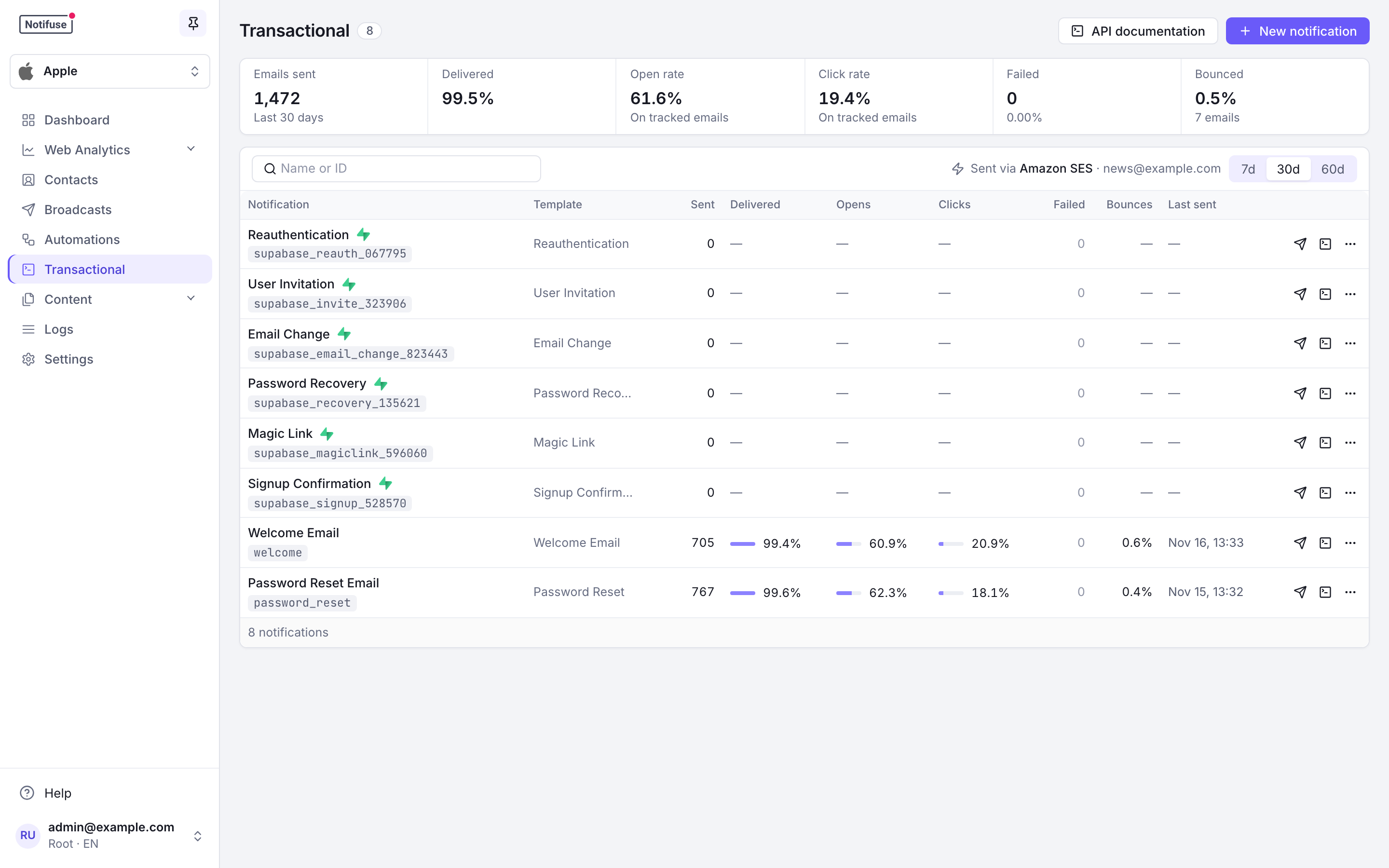
The Transactional page lists your notifications with their statistics over the last 7, 30 or 60 days, today included:
- Totals: emails sent, delivery rate with its change since the previous period, open and click rates on tracked emails, failures and bounces.
- One row per notification: its template, emails sent, delivery, open and click rates, failures, bounce rate, and when it last sent successfully. A delivery rate under 97% and a bounce rate from 2% are highlighted. Search by name or ID.
- Row actions: send a test, show the API command, and from the menu edit, preview the template, copy the ID, open its messages in the logs or delete it.
Click a row to open the notification’s detail view, which keeps its own link to share. It shows the same statistics for that notification, linked to the matching messages in the logs, the sends per day, the latest sends (refreshed every 30 seconds), a preview of its template, its tracking and UTM settings, the sender a send uses by default, and the API call in cURL, TypeScript and Python. Move to the previous or next notification with K and J.
With an SMTP provider, delivery and bounce rates are not available, since SMTP sends no delivery events. The statistics need the Message history read permission.
API Endpoint
Send transactional emails using a simple POST request:
Request
curl -X POST \
  "https://v3.notifuse.com/api/transactional.send" \
  -H "Content-Type: application/json" \
  -H "Authorization: Bearer YOUR_API_KEY" \
  -d '{
  "workspace_id": "your_workspace",
  "notification": {
    "id": "password_reset",
    "external_id": "pwd-reset-user123-20240101",
    "channels": ["email"],
    "contact": {
      "email": "user@example.com"
    },
    "data": {
      "reset_token": "abc123",
      "expiry_time": "2024-01-01T12:00:00Z"
    },
    "metadata": {
      "user_id": "12345",
      "trigger": "forgot_password",
      "source": "web_app"
    },
    "email_options": {
      "from_name": "Support Team",
      "subject": "Reset your password, {{ contact.first_name }}",
      "reply_to": "support@yourcompany.com",
      "cc": ["admin@yourcompany.com"],
      "bcc": ["logs@yourcompany.com"],
      "attachments": [
        {
          "filename": "reset-guide.pdf",
          "content": "JVBERi0xLjQKJeLjz9MKMy4uLg==",
          "content_type": "application/pdf"
        }
      ]
    }
  }
}'
Parameters
| Parameter | Type | Required | Description |
|---|---|---|---|
workspace_id | string | Yes | Your workspace identifier |
notification.id | string | Yes | Template identifier for the email |
notification.external_id | string | No | Unique identifier for deduplication |
notification.channels | array | Yes | Must include “email” |
notification.contact | object | Yes | Contact object with at least an email field |
notification.data | object | No | Template variables for email content |
notification.metadata | object | No | Tracking data (not available in templates) |
notification.email_options | object | No | Email routing configuration |
Email Options
| Parameter | Type | Description |
|---|---|---|
sender_id | string | Send from this sender of the transactional email integration instead of the template’s. An unknown ID is refused with a 400 before the contact is created or updated |
from_name | string | Override default sender display name |
subject | string | Override template subject line (supports Liquid templating, max 255) |
reply_to | string | Set custom reply-to email address, in place of the template’s reply-to |
cc | array | List of carbon copy recipients |
bcc | array | List of blind carbon copy recipients |
attachments | array | File attachments (max 20 files, 3MB per file, 10MB total) |
Data vs Metadata
Template Variables (data)
The data object contains variables that will be available in your email templates:
{
  "data": {
    "order_id": "ORD-12345",
    "total": "$99.99",
    "discount_code": "WELCOME20"
  }
}
These can be used in templates as: {{ order_id }}, {{ total }}, {{ discount_code }}
Tracking Data (metadata)
The metadata object stores information for analytics and tracking but is not available in templates:
{
  "metadata": {
    "campaign_id": "welcome-series",
    "source": "mobile_app",
    "user_segment": "premium"
  }
}
Use metadata for internal tracking, analytics, and reporting purposes.
Email Attachments
Send files with your transactional emails such as invoices, receipts, tickets, or documents. Attachments are automatically deduplicated and stored efficiently.
Attachment Limits
- Maximum files: 20 attachments per email
- File size: 3MB per file
- Total size: 10MB per email
- Supported formats: All file types (PDF, PNG, JPEG, DOCX, etc.)
Attachment Parameters
| Parameter | Type | Required | Description |
|---|---|---|---|
filename | string | Yes | Name of the file (max 255 characters) |
content | string | Yes | Base64-encoded file content |
content_type | string | No | MIME type (e.g., “application/pdf”), auto-detected if not provided |
disposition | string | No | “attachment” (default) or “inline” |
content_id | string | No | Content-ID for inline attachments, referenced from the HTML body as <img src="cid:...">. Only allowed when disposition is “inline”. Defaults to the filename when omitted. |
Example with PDF Invoice
{
  "workspace_id": "your_workspace",
  "notification": {
    "id": "order_confirmation",
    "contact": {
      "email": "customer@example.com"
    },
    "data": {
      "order_id": "ORD-12345",
      "total": "$99.99"
    },
    "email_options": {
      "attachments": [
        {
          "filename": "invoice-12345.pdf",
          "content": "JVBERi0xLjQKJeLjz9MKMy4uLg==",
          "content_type": "application/pdf",
          "disposition": "attachment"
        }
      ]
    }
  }
}
Example with Multiple Attachments
{
  "email_options": {
    "attachments": [
      {
        "filename": "invoice.pdf",
        "content": "JVBERi0xLjQKJeLjz9MK...",
        "content_type": "application/pdf"
      },
      {
        "filename": "receipt.png",
        "content": "iVBORw0KGgoAAAANSUhEU...",
        "content_type": "image/png"
      },
      {
        "filename": "terms.docx",
        "content": "UEsDBBQABgAIAAAAIQ...",
        "content_type": "application/vnd.openxmlformats-officedocument.wordprocessingml.document"
      }
    ]
  }
}
Inline Images (Content-ID)
Embed per-recipient images — such as QR codes or personalized graphics — directly inside the email body instead of hosting them at a URL. Set disposition to "inline" and give the attachment a content_id, then reference it from your template’s HTML as <img src="cid:...">:
{
  "email_options": {
    "attachments": [
      {
        "filename": "check-in-qr.png",
        "content": "iVBORw0KGgoAAAANSUhEU...",
        "content_type": "image/png",
        "disposition": "inline",
        "content_id": "checkInQr"
      }
    ]
  }
}
And in the email template:
<img src="cid:checkInQr" alt="Your check-in QR code" />Notes:
content_idmay only contain letters, digits, and the characters._-@(max 255 characters), and is only accepted whendispositionis"inline".- When
content_idis omitted, the filename is used as the Content-ID, so<img src="cid:check-in-qr.png">also works. - Inline images are delivered inside a
multipart/relatedMIME part alongside the HTML body, so email clients embed them rather than showing them as downloadable attachments. - Because the image travels inside the message body, it is never fetched or logged by link proxies or image-caching services — suitable for per-recipient secrets like QR codes.
- On Mailgun, the
content_idalso becomes the delivered part’s filename, so prefer acontent_idwith a file extension (e.g.checkInQr.png) when sending through Mailgun.
Common Use Cases
- Order Confirmations: Attach invoices and receipts
- Booking Confirmations: Attach tickets and itineraries
- Legal Documents: Attach contracts and agreements
- Reports: Attach analytics reports and summaries
- Certificates: Attach completion certificates and badges
- Event Tickets: Embed per-recipient QR codes as inline images
SMTP Bridge
Notifuse includes a built-in SMTP bridge server that allows you to send transactional emails using standard SMTP clients instead of HTTP API calls. This is particularly useful when:
- Legacy Systems: Integrating with existing applications that only support SMTP
- Email Libraries: Using standard email libraries in any programming language
- Framework Integration: Working with frameworks that have built-in SMTP support
- Gradual Migration: Moving from existing email providers without changing application code
How It Works
The SMTP bridge server accepts emails via SMTP on port 587 (STARTTLS) or 465 (implicit TLS). The email body must contain a JSON payload matching the Transactional API format. Authentication is done using your workspace API credentials.
Sending Emails via SMTP
Authentication
- Username: Your workspace API email (the email associated with your API key)
- Password: Your workspace API key
- Security: STARTTLS (port 587) or implicit TLS / SMTPS (port 465), depending on your
SMTP_BRIDGE_TLSsetting - Server: Your configured SMTP bridge host (e.g.,
smtp.yourdomain.com)
Email Format
The email body must be a JSON payload matching the Transactional API format:
{
  "workspace_id": "your_workspace",
  "notification": {
    "id": "password_reset",
    "external_id": "unique-id-123",
    "channels": ["email"],
    "contact": {
      "email": "user@example.com",
      "first_name": "John",
      "last_name": "Doe"
    },
    "data": {
      "reset_token": "abc123",
      "expiry_time": "1 hour"
    }
  }
}
Permissions
The Transactional write permission on its own is enough to send, over both the API and the SMTP bridge. That makes a send-only API key practical: create a key, grant it Transactional write, leave everything else off, and it can send email without being able to read or edit a single contact. See Admins & API Keys.
Two limits apply to a key scoped that narrowly, and they apply identically to the SMTP bridge:
- Without Contacts write, a send still creates the recipient’s contact when it does not exist yet, but only their email address is stored. Every other field of the
contactobject is dropped, and an existing contact is never modified. - Without Contacts read, a send that sets
ccorbccis refused. On the SMTP bridge those come from the message’sCc:andBcc:headers, so a send-only credential that sets them is rejected as the message is handed over.
Add Contacts read and write to the key if it needs to enrich contact profiles as it sends, or to copy extra recipients. A key holding both behaves exactly as it did before.
Transactional write covers every path that sends real mail through your provider credentials, not just /api/transactional.send: it also covers /api/transactional.testTemplate and the SMTP bridge. Testing an email provider (/api/email.testProvider) is reserved to the workspace owner, so an API key cannot call it. A test email also needs Templates read, and Lists read when it is sent for a mailing list (list_id).
Transactional read covers only the notification definitions — listing them and opening one. It does not let a key send.
Template Integration
Data Structure in Templates
Your templates have access to both API data and contact profile:
<!-- From API data -->
Hello! Your order #{{ order_id }} has been confirmed.

<!-- From contact profile (automatically enriched) -->
Dear {{ contact.first_name }} {{ contact.last_name }},

<!-- Combining both -->
We've sent your order #{{ order_id }} to {{ contact.email }}.
Conditional blocks
Blocks of a visual template can be sent only when a condition on this data holds, for example a section shown only when order.total is greater than 100. See Conditional blocks.
Complete Example
API Request:
{
  "workspace_id": "your_workspace",
  "notification": {
    "id": "order_confirmation",
    "external_id": "order-12345-confirmation",
    "contact": {
      "email": "sarah@example.com"
    },
    "data": {
      "order_id": "ORD-12345",
      "total": "$99.99",
      "items": ["Product A", "Product B"]
    },
    "metadata": {
      "campaign_id": "order-confirmations",
      "source": "checkout"
    }
  }
}
Existing Contact Profile:
{
  "first_name": "Sarah",
  "last_name": "Johnson",
  "email": "sarah@example.com",
  "phone": "+1234567890"
}
Available in Template:
Hi {{ contact.first_name }}!

Your order #{{ order_id }} totaling {{ total }} has been confirmed.

Items:
{% for item in items %}
- {{ item }}
{% endfor %}

We'll send updates to {{ contact.email }}.
API Reference
Deduplication Examples
Order Confirmations
{
  "external_id": "order-12345-confirmation"
}
Password Resets
{
  "external_id": "pwd-reset-user123-20240101"
}
Welcome Emails
{
  "external_id": "welcome-user123"
}
Using consistent external_id patterns ensures that duplicate notifications are automatically prevented, even if your application sends multiple requests.
For complete API documentation and additional parameters, see the API Reference.