
Custom branding replaces the Notifuse identity of a self-hosted instance with yours: a name, a main logo and an icon. Everyone who uses the instance sees it, in every workspace. You can also hide the Help menu, whose links lead to Notifuse.
It needs a licence key that covers custom branding: Agency or Enterprise, or the Pro and Business plans on Notifuse Cloud.
Set your brand
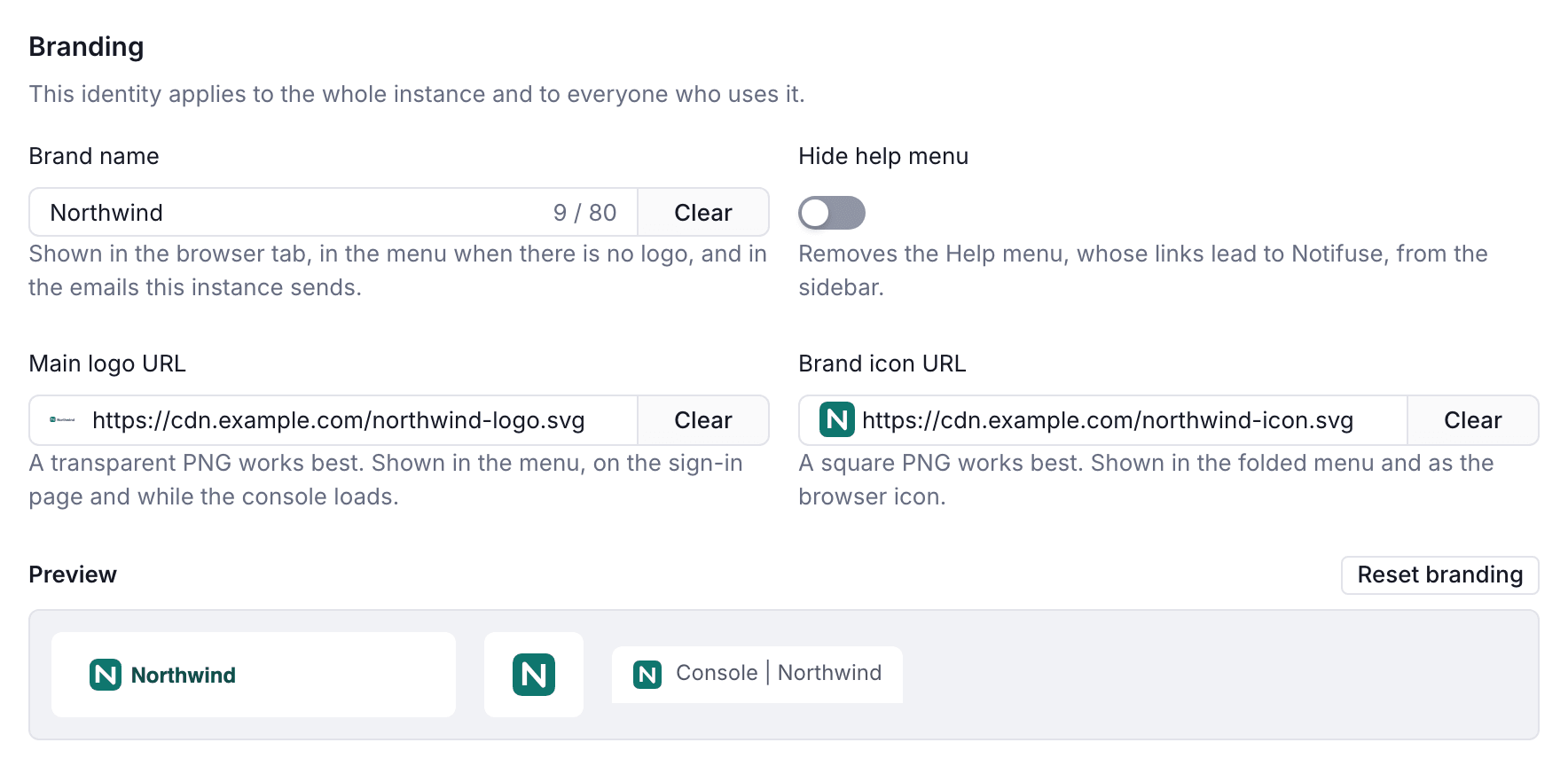
Sign in as the root user (ROOT_EMAIL), open System Settings from the workspace list, and fill the Branding section.
| Field | What it takes |
|---|---|
| Brand name | Up to 80 characters. Required as soon as a logo or an icon is set. |
| Main logo URL | An image URL. A transparent PNG works best. |
| Brand icon URL | An image URL. A square PNG works best. |
| Hide help menu | Removes the Help menu from the sidebar. |
The Preview under the fields shows the open menu, the folded menu and the browser tab as they will look. Reset branding empties the three fields and turns Hide help menu off, which brings back the Notifuse identity once you save.
Saving restarts the server, as any change in System Settings does. The console waits for the server to come back with your brand, then opens the sign-in page. If the server is not back within two minutes, refresh the page yourself.
Image URLs
Notifuse stores the address of each image, not the file. Host the images where every browser that opens the console, and every mail client, can load them. A URL must:
- start with
https://and use the default port; - point to a public domain or a public IP address, never a private or reserved one;
- carry no user name, password, space or
#fragment; - write the domain in its ASCII form (
xn--…) if it has non-Latin characters; - stay under 2,048 bytes.
A preview that does not load in your browser does not block the save, since your own network may be the one that cannot reach the image. Where an image fails to load, the console shows the brand name instead of the logo, and the initial of the name instead of the icon.
Where your brand appears
In the console
- The browser tab title (
Console | Your brand) and its icon. Until a brand icon is set, the tab shows a neutral icon. - The screen shown while the console loads, and the sign-in page, above the form.
- The sidebar: the main logo, or the name when there is no logo. The folded sidebar shows the icon, or the initial of the name.
- The account security page, and the texts that named Notifuse, such as the DKIM and Zapier settings or the two-factor screens.
- The account menu and the workspace list show the version without a product name, such as
v45.0. The update banner names your brand. - The web app manifest, used when someone installs the console as an app.
In what the server sends
- The system emails: sign-in codes, invitations, broadcast pause alerts, data retention notices and two-factor security notices. The sender name is your brand when From Name is empty in the system SMTP settings. The setup wizard fills it with
Notifuse, so change or clear it in System Settings too. - The name authenticator apps show for an account. It applies to new two-factor setups: accounts already set up keep the name their app stored.
- The test email of an email provider, and the test message of a webhook.
In what you create from now on
- New Supabase templates carry your logo in place of the Notifuse banner, or no banner without a logo, and no “Powered by Notifuse” line or Notifuse social links.
- A new blog theme starts with a footer that has no “Powered by Notifuse” line and no Notifuse links.
Templates and themes created earlier belong to their workspace and keep what they hold. Edit them like any other template or theme.
What keeps the Notifuse name
- The setup wizard, which runs before a brand can be set.
- Licence messages, since Notifuse sells the licence.
- Links to this documentation, and technical names such as the
X-Notifuse-*headers and thenotifuse:marks of a template export.
Without a licence
The brand shows only while a licence covers custom branding. When no key covers it, or a key expires past its grace period, the instance shows the Notifuse identity again and the Help menu comes back. Your saved values stay in the database, and your brand returns as soon as a key covers it again, with no new save.
Without the licence, the Branding fields can be cleared but not filled or changed.
Running more than one API container
Each container reads the brand when it starts. After a save, only the container that received it restarts, so the others keep showing the old brand until they restart too. Restart them all after changing the brand, or set it during a maintenance window.
If the saved brand cannot be read
The brand is stored as one JSON value under the instance_branding key of the settings table, in the system database. If that value is edited by hand and no longer parses, Notifuse still starts, shows the Notifuse identity and logs an error.
System Settings then shows The saved branding cannot be read above the Branding fields. Save new values, or click Reset branding and save, to replace the stored value. Saving other settings leaves it as it is.
If you cannot reach the console, delete the row and restart:
DELETE FROM settings WHERE key = 'instance_branding';