
Go through this list before a self-hosted instance sends its first real campaign. It assumes the official compose.yaml from Installation.
Network and HTTPS
- Put a reverse proxy with TLS in front of Notifuse.
compose.yamlserves plain HTTP on port8081, on every interface unless you setHTTP_BIND=127.0.0.1in.env, which you should do when the proxy runs on the same server. See Installation. - Make the proxy forward the original
Hostheader, or setX-Forwarded-Host. Without it, web versions of your emails stop opening (A public API endpoint). - Set the API endpoint to the public HTTPS address, such as
https://emails.yourcompany.com. The setup wizard prefills API endpoint with the address of the page, so check it if you ran the wizard over plain HTTP. Notifuse writes this address into emails, invitations and provider webhooks. To change it later, follow Changing your domain.
Secrets and database
- Generate
SECRET_KEYonce, withopenssl rand -base64 32, and store a copy outside the server. It encrypts the stored credentials, and a new key on its own leaves them unreadable. To change it, follow Replacing the secret key. - Give PostgreSQL its own password with
DB_PASSWORDin.env, as the installation commands do. Without it,compose.yamlusespostgres. - Keep the PostgreSQL port bound to
127.0.0.1. The officialcompose.yamlpublishes it as127.0.0.1:5433, reachable from the server itself forpsqland backups. SetPOSTGRES_HOST_PORTin.envif 5433 is taken, rather than opening the port to the network. - Keep the directory that holds
compose.yamlwhere it is. Compose names the database volume after it, and a renamed directory starts a new installation on an empty database (Installation).
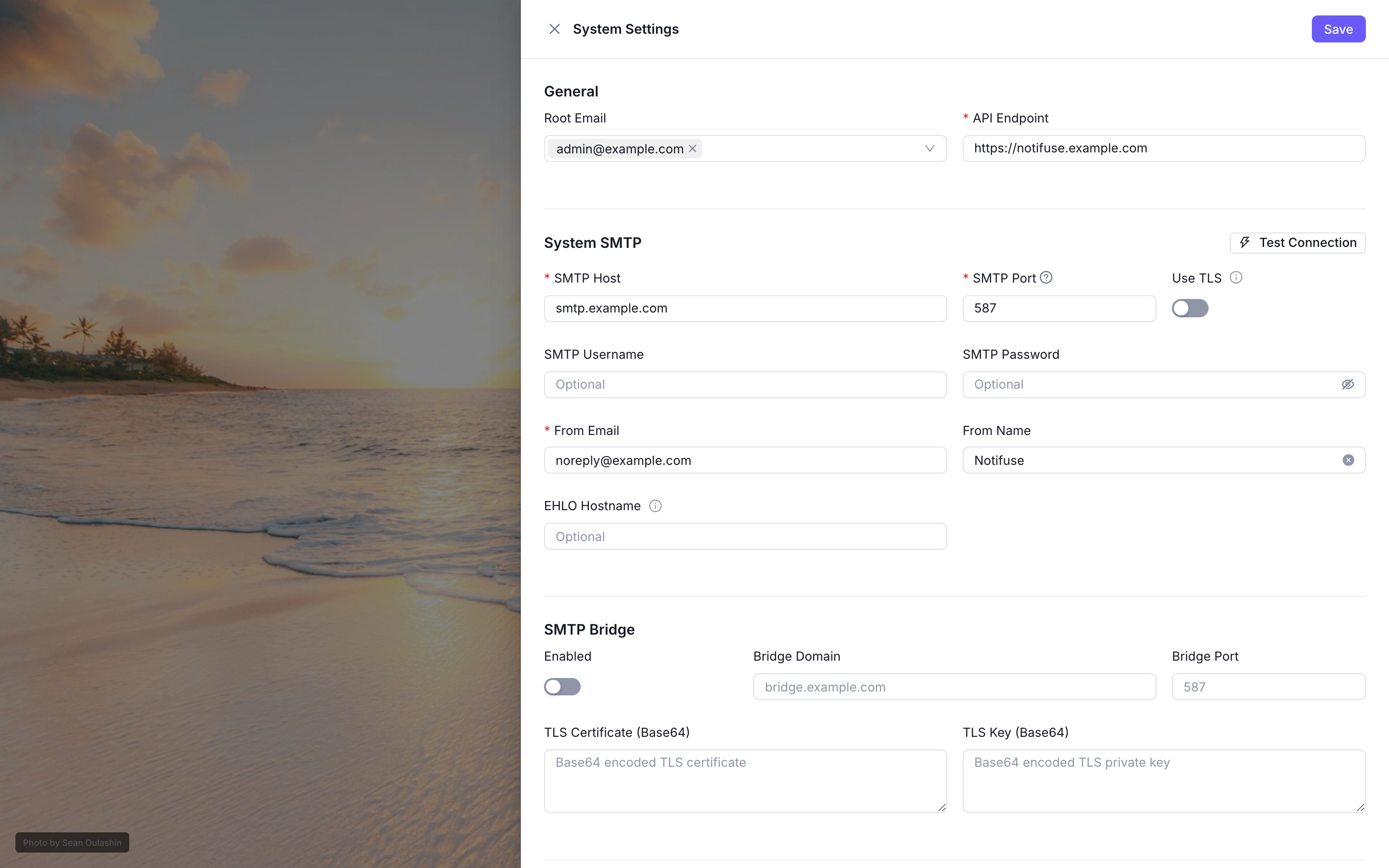
- Set up the system SMTP server and send a test from Test connection in the setup wizard. Notifuse sends sign-in codes and invitations through it, so nobody can receive a sign-in code until it works. You can change it later as root in System Settings.
- Connect each workspace to its email provider. The system SMTP server only carries sign-in codes and invitations; workspaces set up their own provider for campaigns and transactional email.
- Authenticate your sending domain (SPF, DKIM, DMARC) with that provider before the first campaign. Notifuse does not check these records, so verify them at the provider. See Authenticate your domain.
Backups
- Back up every database (
notifuse_systemand eachnotifuse_ws_…database) on a schedule, and keepSECRET_KEYwith the dumps, off the server. Backups gives the commands. - Restore one backup into an empty installation at least once, and sign in to check your workspaces, before you rely on it.
- Once the restore works, set
DB_EXPECT_EXISTING=truein.env. Notifuse then refuses to start on an empty database instead of creating a new installation on it.
Updates and telemetry
- Decide on Check for updates and Anonymous telemetry, both on by default in the setup wizard. Update checks show new versions and security fixes on the workspace list. Change either later in System Settings (Check for Updates, Telemetry), or with the
CHECK_FOR_UPDATESandTELEMETRYvariables, which win over the console. - Pin the release you run with
NOTIFUSE_VERSIONin.env(for exampleNOTIFUSE_VERSION=v44.0), so a new copy ofcompose.yamldoes not upgrade you by surprise. When you upgrade, follow Upgrade to a new release.
Monitoring
- Watch
GET /healthz. It answers200with{"status":"ok"}when Notifuse reaches its system database within 2 seconds, and503with{"status":"unavailable"}otherwise.compose.yamlalready uses it as the container health check, every 30 seconds. - Read the server log with
docker compose logs -f api.compose.yamlcaps it at five files of 10 MB.