
You end with an automation that waits after each cart event, checks for an order and emails the shopper the items they left behind.
Before you start
- An API key with Contacts write, created in Settings → Team & API keys. Custom events answer to the Contacts permission.
- Your workspace ID and the address of your Notifuse instance (
YOUR_HOSTin the examples). - A list for the automation, such as your newsletter list. An automation can’t hold an Email node without one.
- An email provider set for Marketing emails.
Set up cart recovery
Send a cart event from your store
When a shopper creates a cart, send a custom event to
POST /api/customEvents.import. The body holds yourworkspace_idand aneventsarray of 1 to 50 events.Each event needs:
external_id: the cart’s ID in your store. A newexternal_idstarts the automation. Sending the same one again updates the stored event and starts nothing.email: the shopper’s address.event_name: lowercase letters, numbers,_,.,/and-, at most 100 characters. This guide usescart.created.properties: whatever the email will show, such as the items and a link back to the cart.
occurred_atis optional and defaults to now. Don’t give the cart event agoal_type.cURL
curl -X POST https://YOUR_HOST/api/customEvents.import \
  -H "Authorization: Bearer YOUR_API_KEY" \
  -H "Content-Type: application/json" \
  -d '{
    "workspace_id": "YOUR_WORKSPACE_ID",
    "events": [
      {
        "external_id": "cart_8f3a2c",
        "email": "jane@example.com",
        "event_name": "cart.created",
        "properties": {
          "cart_url": "https://shop.example.com/cart/8f3a2c",
          "total": 89.9,
          "items": [
            { "name": "Linen shirt", "quantity": 1, "price": 59.9 },
            { "name": "Canvas tote", "quantity": 1, "price": 30.0 }
          ]
        }
      }
    ]
  }'
Node.js
const response = await fetch('https://YOUR_HOST/api/customEvents.import', {
  method: 'POST',
  headers: {
    Authorization: `Bearer ${process.env.NOTIFUSE_API_KEY}`,
    'Content-Type': 'application/json'
  },
  body: JSON.stringify({
    workspace_id: 'YOUR_WORKSPACE_ID',
    events: [
      {
        external_id: `cart_${cart.id}`,
        email: cart.email,
        event_name: 'cart.created',
        properties: {
          cart_url: cart.url,
          total: cart.total,
          items: cart.items.map((item) => ({
            name: item.name,
            quantity: item.quantity,
            price: item.price
          }))
        }
      }
    ]
  })
})

if (!response.ok) {
  throw new Error(`Notifuse returned ${response.status}: ${await response.text()}`)
}
Python
import os
import requests

response = requests.post(
    "https://YOUR_HOST/api/customEvents.import",
    headers={"Authorization": f"Bearer {os.environ['NOTIFUSE_API_KEY']}"},
    json={
        "workspace_id": "YOUR_WORKSPACE_ID",
        "events": [
            {
                "external_id": f"cart_{cart['id']}",
                "email": cart["email"],
                "event_name": "cart.created",
                "properties": {
                    "cart_url": cart["url"],
                    "total": cart["total"],
                    "items": [
                        {"name": i["name"], "quantity": i["quantity"], "price": i["price"]}
                        for i in cart["items"]
                    ],
                },
            }
        ],
    },
)
response.raise_for_status()
Notifuse doesn’t create a contact from an event, and a journey can’t run its steps without one. If the shopper may not be a contact yet, create them first with
POST /api/contacts.upsert.The email shows the cart as it was when this first event arrived. Updates sent later under the same
external_idchange the stored event but not the journey that already started.Send orders as purchase goals
The automation checks for an order with a Goal condition, and a goal condition only counts events that carry a
goal_type. Send every order withgoal_type: "purchase"and its amount ingoal_value, which is required for purchases.cURL
curl -X POST https://YOUR_HOST/api/customEvents.import \
  -H "Authorization: Bearer YOUR_API_KEY" \
  -H "Content-Type: application/json" \
  -d '{
    "workspace_id": "YOUR_WORKSPACE_ID",
    "events": [
      {
        "external_id": "order_1042",
        "email": "jane@example.com",
        "event_name": "order.completed",
        "goal_type": "purchase",
        "goal_value": 89.9,
        "properties": { "cart_id": "8f3a2c" }
      }
    ]
  }'
Node.js
await fetch('https://YOUR_HOST/api/customEvents.import', {
  method: 'POST',
  headers: {
    Authorization: `Bearer ${process.env.NOTIFUSE_API_KEY}`,
    'Content-Type': 'application/json'
  },
  body: JSON.stringify({
    workspace_id: 'YOUR_WORKSPACE_ID',
    events: [
      {
        external_id: `order_${order.id}`,
        email: order.email,
        event_name: 'order.completed',
        goal_type: 'purchase',
        goal_value: order.total,
        properties: { cart_id: order.cartId }
      }
    ]
  })
})
Python
requests.post(
    "https://YOUR_HOST/api/customEvents.import",
    headers={"Authorization": f"Bearer {os.environ['NOTIFUSE_API_KEY']}"},
    json={
        "workspace_id": "YOUR_WORKSPACE_ID",
        "events": [
            {
                "external_id": f"order_{order['id']}",
                "email": order["email"],
                "event_name": "order.completed",
                "goal_type": "purchase",
                "goal_value": order["total"],
                "properties": {"cart_id": order["cart_id"]},
            }
        ],
    },
).raise_for_status()
Notifuse doesn’t link an order to a cart. The
cart_idproperty is only there for your own records.Write the reminder email
Create a template in the Marketing category. The event that started the journey is available as
trigger_event, with the cart’s properties undertrigger_event.properties:<p>Hi {{ contact.first_name | default: "there" }}, you left these in your cart:</p> {% for item in trigger_event.properties.items %} <p>{{ item.quantity }} × {{ item.name }}: {{ item.price }}</p> {% endfor %} <p><a href="{{ trigger_event.properties.cart_url }}">Back to your cart</a></p>Create the automation
Go to Automations and click New automation. In Settings on the left, pick the List and set Frequency:
- Every time: each new cart starts its own journey.
- Once per contact: only a contact’s first cart ever gets a reminder.
On the trigger, set Trigger Event to Custom event and Event Name to
cart.created.Add a Delay
Add a Delay step after the trigger. Set Wait Duration to 1 and the unit to Days.
The next step explains why a 1-day wait fits the order check best.
Add a Filter that looks for an order
Add a Filter step after the Delay and click Add filter conditions. Add a Condition of type Goal and fill it in:
- The contact: has not reached, Purchase.
- Measure: count, greater than or equal to, 1.
- When: in the last 1 days.
Click Confirm. Contacts who match follow the Yes path. Leave No empty: a shopper who ordered ends the journey there.
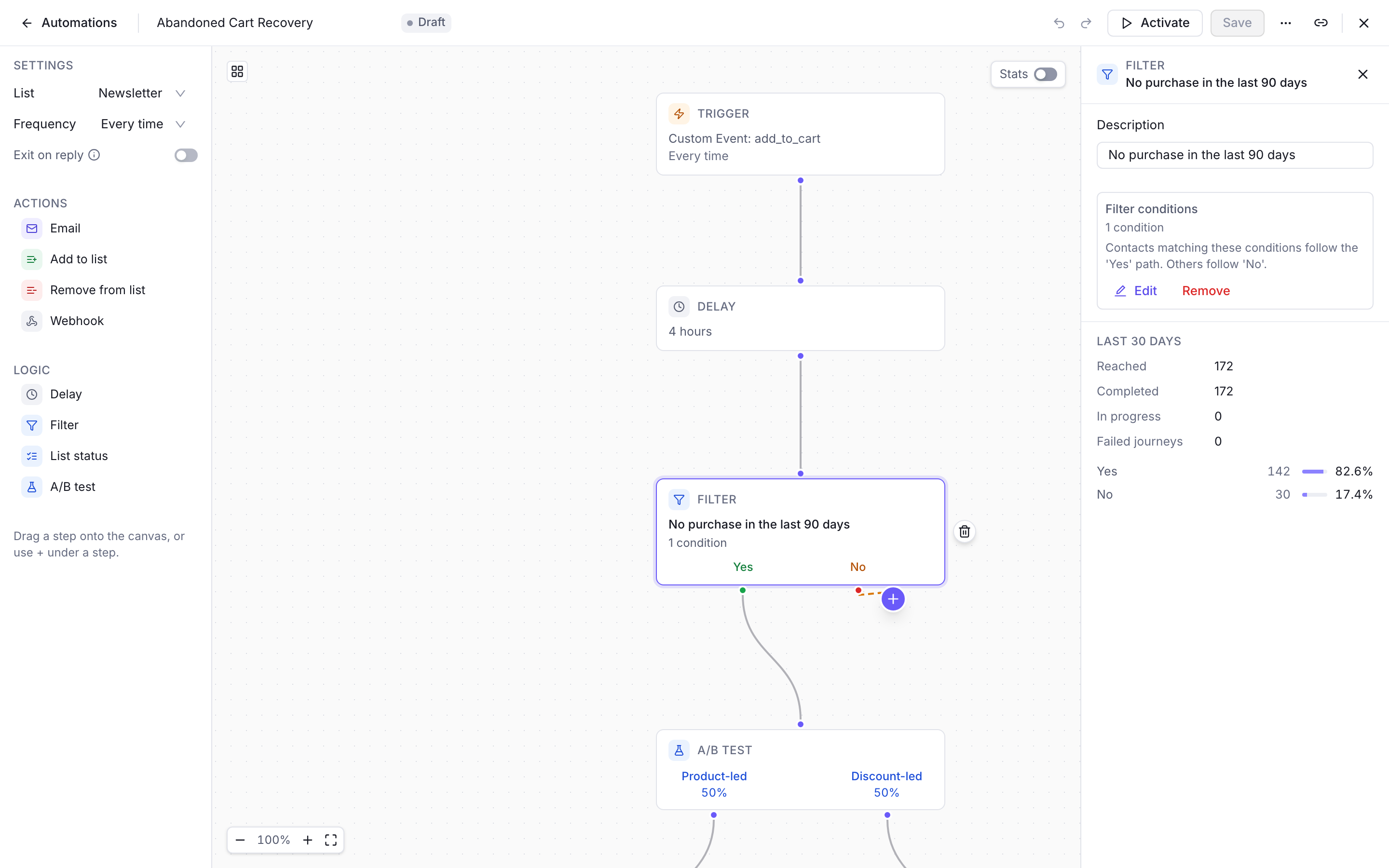
The Filter step of a cart automation, with its condition and how many contacts took each path Note
The Filter can’t check “no order since this cart”. The goal window counts whole days back from the moment the Filter runs, and it can’t start at the cart event.
With a 1-day Delay and a 1-day window, the two line up: the Filter looks back to about the time the cart event arrived. A shorter Delay with the same window looks further back than the cart. With a 4-hour Delay, a shopper who ordered in the 20 hours before creating the cart is treated as a buyer and gets no reminder.
The window also counts every purchase, so an order for something else entirely still stops the reminder.
The Filter is also where you can limit the email to subscribers. Contacts who were never on the automation’s list still get a marketing email; only those who unsubscribed, bounced or complained on it are skipped. To email list members only, add a List subscription condition next to the Goal.
Add the Email step and activate
Add an Email step on the Yes path and pick your reminder in Email Template.
Click Activate, then Yes, activate. Only carts that arrive after this point start a journey.
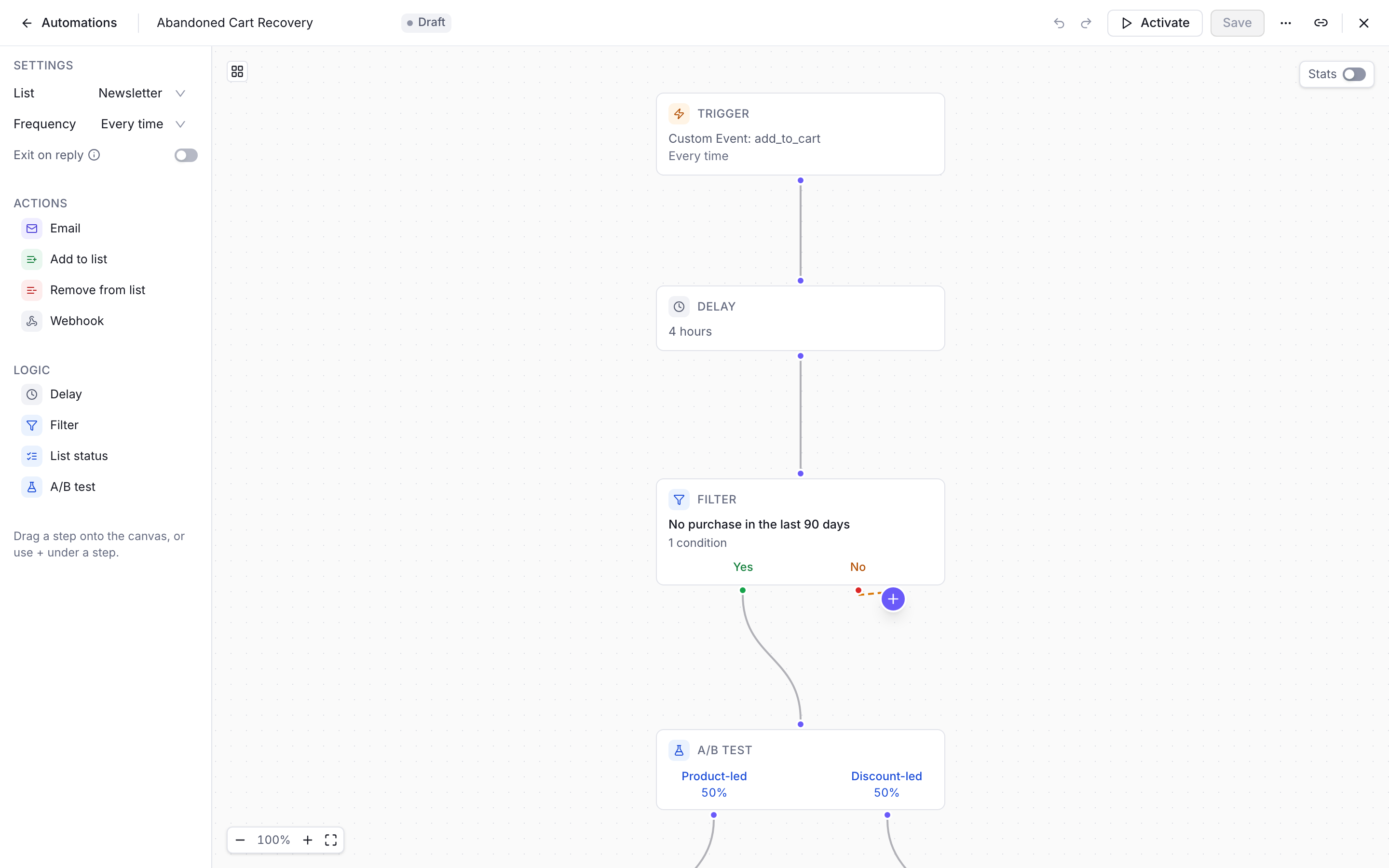
A cart recovery automation: custom event trigger, delay, then a filter on recent purchases
Check that it works
- Set the Delay to a few Minutes while you test.
- Send a
cart.createdevent for your own address, with anexternal_idyou haven’t used yet. - Open your contact in Contacts, go to the Activity tab and pick the Events filter. You should see the cart event and “Entered the automation”.
- When the delay is over, the reminder arrives and the activity shows “Completed the automation”.
- Send a second cart, then a purchase event before the delay ends. That journey ends at the Filter and no email goes out.
Set the Delay back to 1 day before real carts come in.