Overview
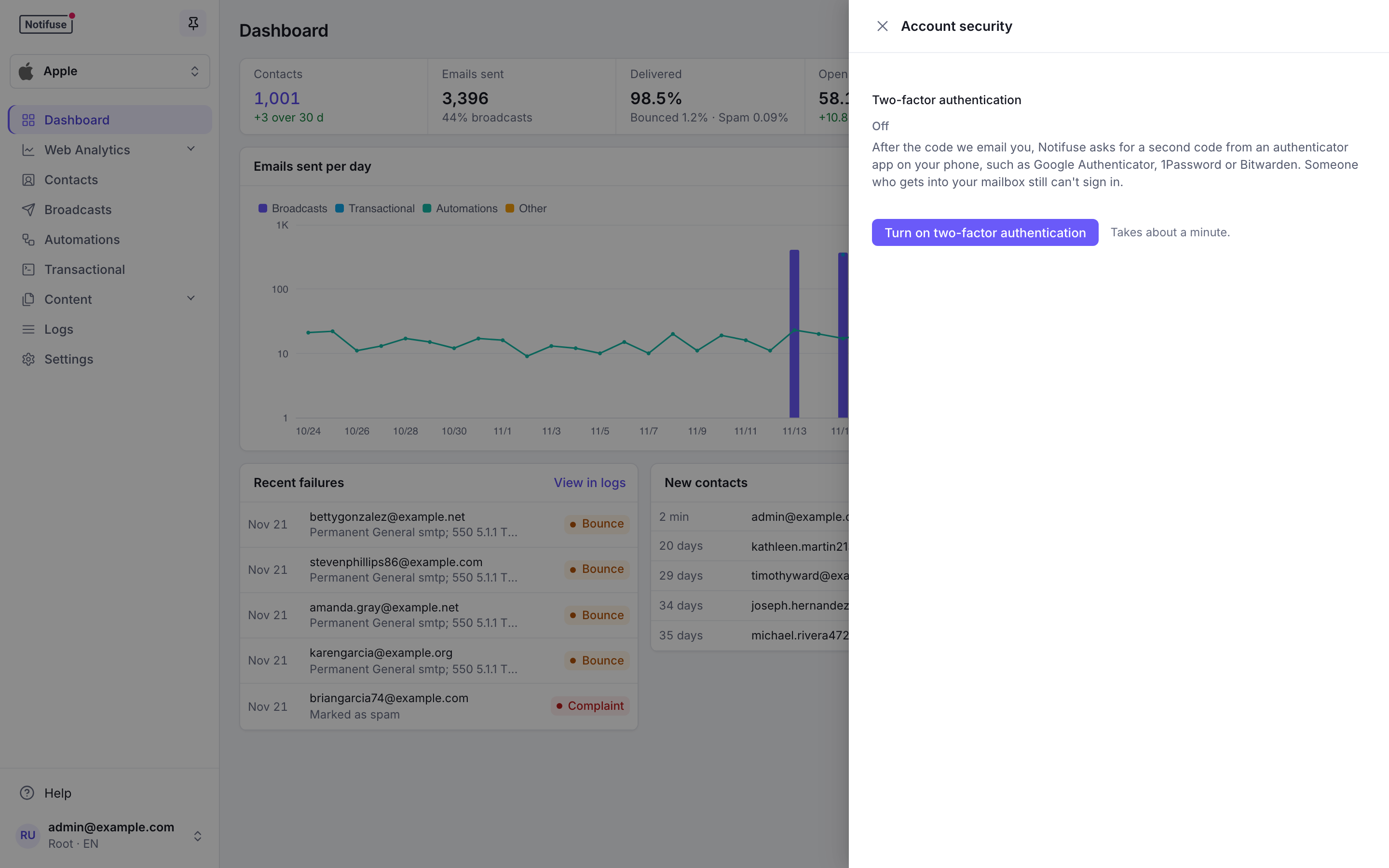
Notifuse signs people in with a code sent by email. Two-factor authentication adds a second code, from an authenticator app on the person’s phone, such as Google Authenticator, 1Password, Bitwarden or Microsoft Authenticator. Someone who gets into the mailbox still can’t sign in.
Each person turns it on for their own account. The root user can also require it for everyone on the instance.
Two-factor authentication is free in every edition, with no licence needed.
Note
Single sign-on and API keys are not affected. With single sign-on, your identity provider asks for its own second factor. An API key is not a person and has no second factor.
Turn it on
- Open the account menu at the bottom of the sidebar and choose Account security.
- Click Turn on two-factor authentication.
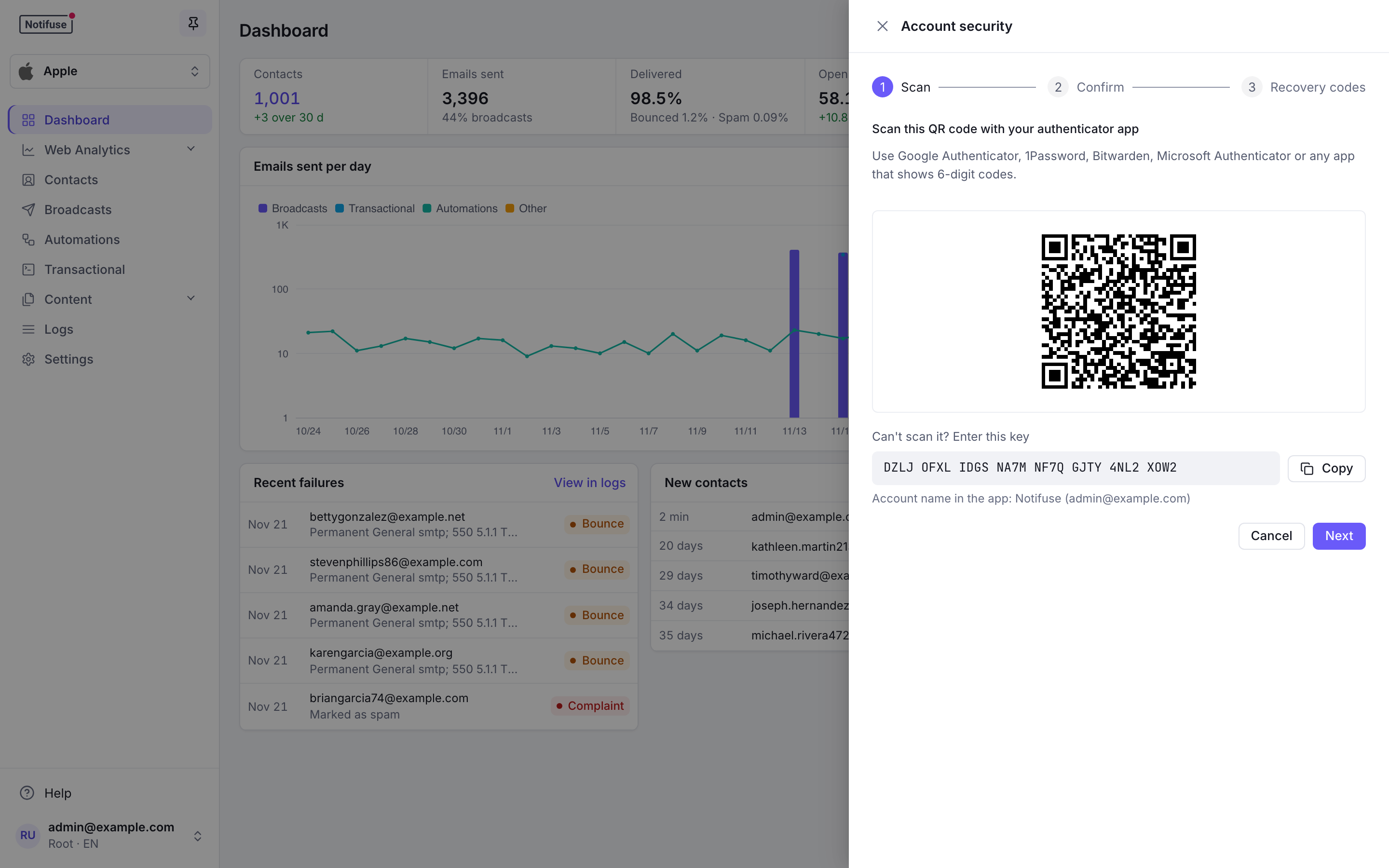
- Scan the QR code with your authenticator app. If you can’t scan it, type the key shown under it.
- Enter the 6-digit code the app shows, then click Turn on. Sign me out of my other sessions is ticked by default.
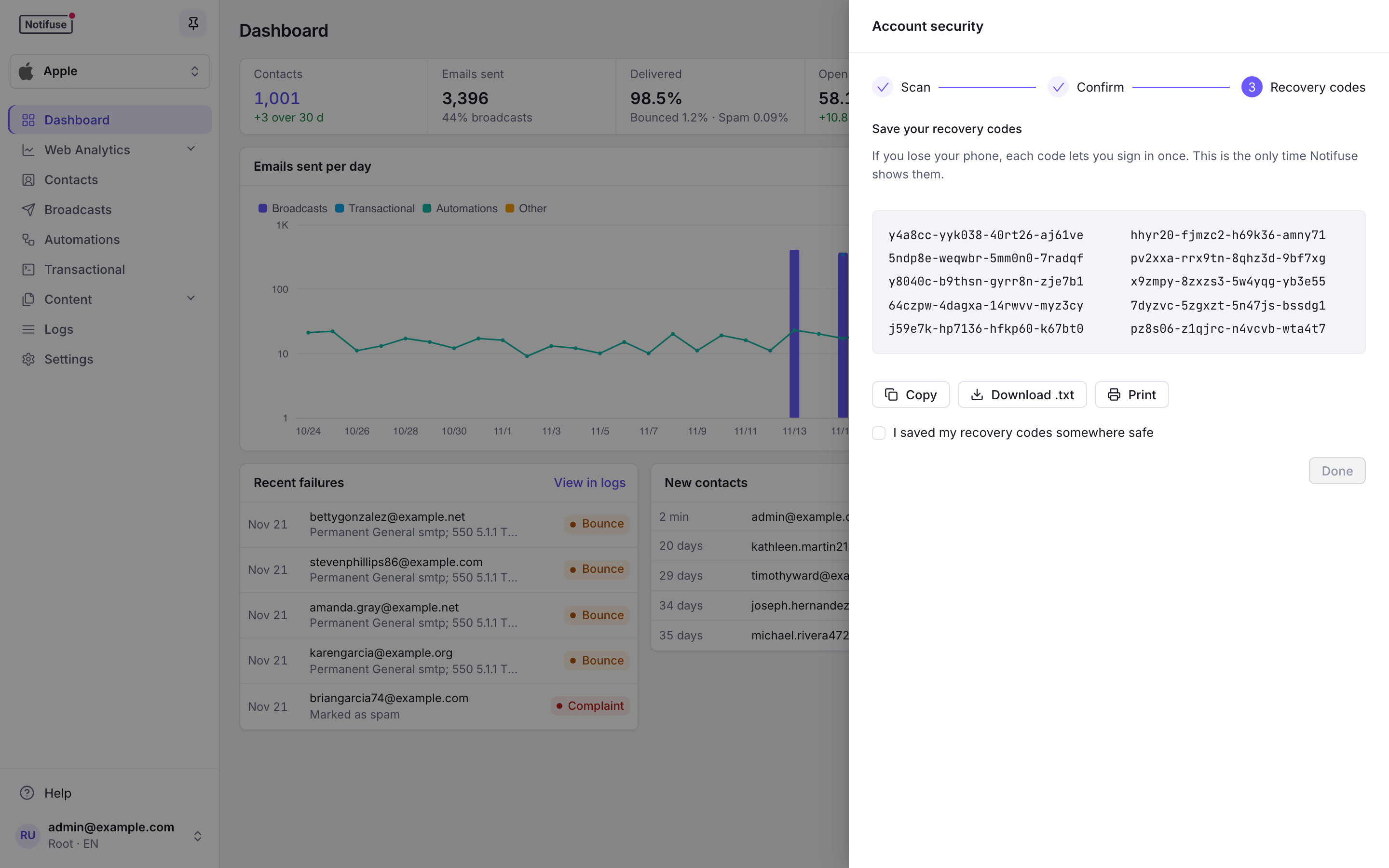
- Save the ten recovery codes: copy them, download them as a
.txtfile or print them. Notifuse shows them only once. Tick I saved my recovery codes somewhere safe, then click Done.
Turning it on needs a recent sign-in, less than 15 minutes old. Otherwise Notifuse asks you to sign in again first, so that a stolen session can’t add an attacker’s app to your account.
An email confirms the change.
Sign in
After the email code, Notifuse asks for the Authentication code from your app. Click Use a recovery code instead if you don’t have your phone.
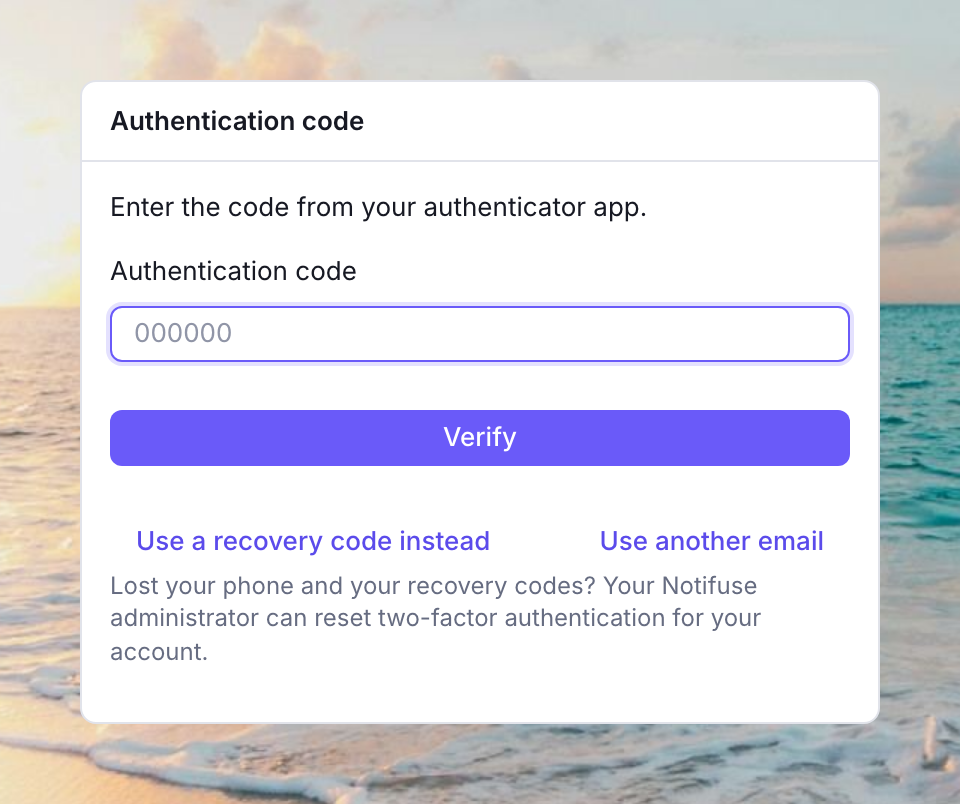
- The second step lasts 10 minutes and accepts 5 attempts. After that, start again with your email.
- From the fifth wrong code in a row, each new attempt waits: 1 minute, then twice as long each time, up to an hour. An email warns you at the fifth wrong code, since someone who got that far had your email code.
- After 50 wrong codes, codes from the app are refused until you sign in with a recovery code or the root user resets your two-factor authentication.
A recovery code always works at sign-in, even during a wait. Each code works once, and an email tells you how many are left.
Accepting a workspace invitation asks for the same code when your account has two-factor authentication. The invitation is accepted once the code is right.
Manage it
Account security shows when you added the app and how many recovery codes are left. Each action below asks for a code from the app or a recovery code.
- Replace app: moves two-factor authentication to a new phone or app. Your recovery codes stay valid.
- Generate new codes: replaces all ten recovery codes. The previous ones stop working.
- Turn off: removes two-factor authentication from your account. You can’t turn it off while the instance requires it.
Each change sends you an email with the date, the address the request came from and the browser.
Require it for everyone
The root user switches on Require two-factor authentication for everyone in System Settings → Security. The same setting can be set with the REQUIRE_TWO_FACTOR=true environment variable, which wins over the switch.
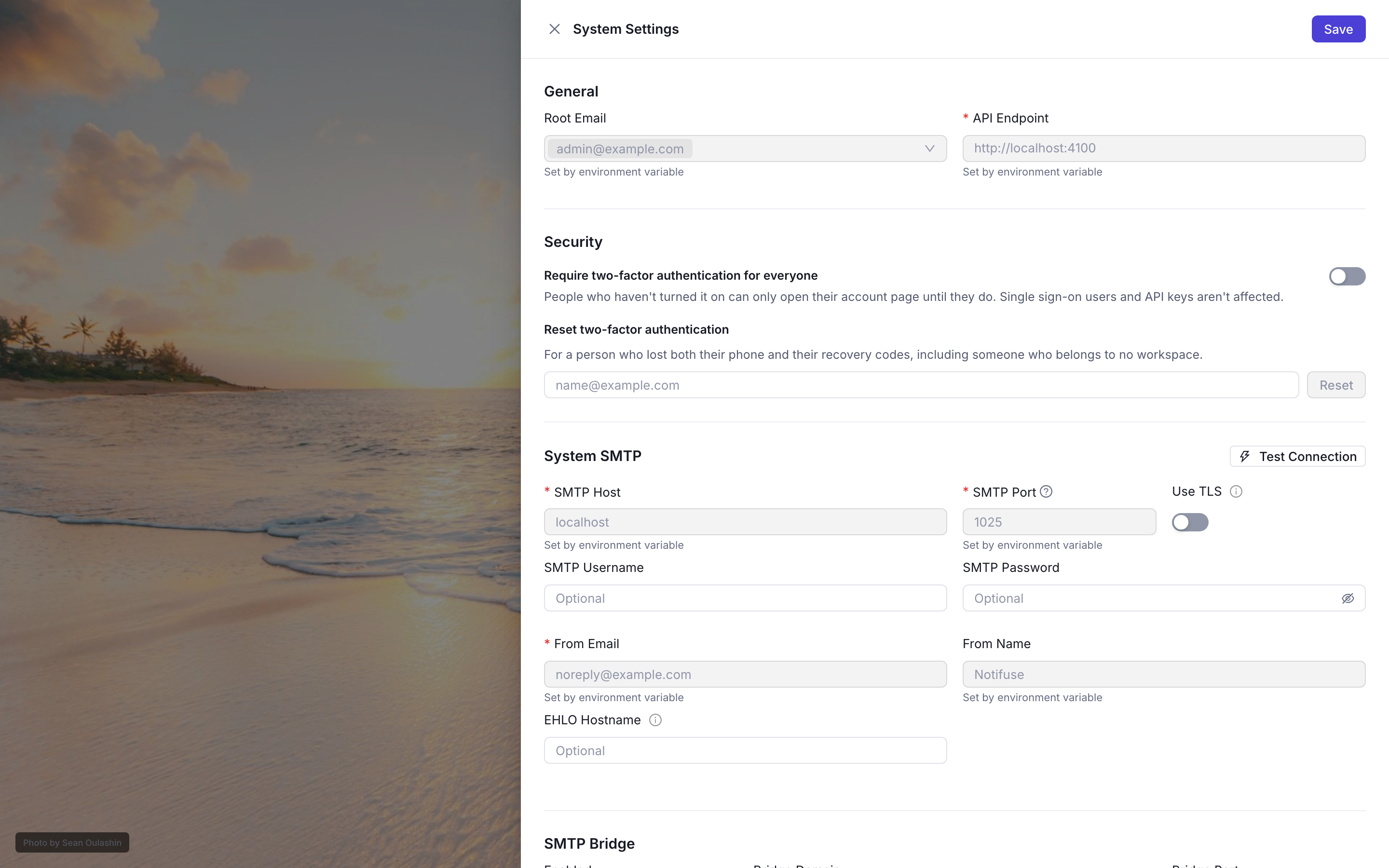
Before switching it on, the panel lists the people who have not turned it on yet. Let them know first.
Once it is on, a person without two-factor authentication can only open the Account security page, until they turn it on. Sessions opened by single sign-on still work.
The root user can only switch it on after turning on two-factor authentication on their own account, so that the next sign-in does not lock them out.
Reset someone’s two-factor authentication
When someone lost both their phone and their recovery codes, the root user resets their two-factor authentication:
- from a member’s row in Settings → Team & API keys: Edit permissions, then Reset under Two-factor authentication, or
- by email in System Settings → Security, for someone who belongs to no workspace.
The reset removes their app and recovery codes, signs them out everywhere and sends them an email. If the instance requires two-factor authentication, they set it up again at their next sign-in.
Check that the request really comes from that person, for example by a call: attackers try this with administrators. A root user who has two-factor authentication confirms the reset with a code. One who doesn’t needs a recent sign-in.
The root user can’t reset their own two-factor authentication. Another root user can, or, on a self-hosted instance, the operator can with SQL (see below).
Self-hosting
Lost access for a root user
If the only root user lost both their phone and their recovery codes, remove their two-factor authentication in the system database:
DELETE FROM user_recovery_codes WHERE user_id = (SELECT id FROM users WHERE email = 'root@example.com');
DELETE FROM user_totp WHERE user_id = (SELECT id FROM users WHERE email = 'root@example.com');
They sign in with the email code alone, then turn two-factor authentication on again.
Secret key and clocks
The secrets of the authenticator apps are encrypted with SECRET_KEY. When you change the key, list the previous one after the new one, as for every encrypted value: Notifuse re-encrypts the secrets at startup. A secret that no key opens is named in the startup log, and that person needs a reset.
Codes depend on time. Keep the server clock synchronized (NTP). A code from the previous or the next 30-second step is accepted, which covers a phone a little off.
Upgrading
With several replicas, replace all of them before you announce the feature. A replica still on an older version signs people in without the second step.
Audit log
Each action is recorded in the audit log: user.twoFactor.setup, user.twoFactor.enable, user.twoFactor.disable, user.twoFactor.regenerateRecoveryCodes, user.twoFactor.verify and users.resetTwoFactor. Codes and secrets never appear in it.