
Overview
The Model Context Protocol (MCP) lets an AI client work in a Notifuse workspace. Connected to Notifuse, claude.ai, ChatGPT, Claude Code or Cursor can look up contacts, draft a template, check a broadcast’s results or send an email when you ask.
Every connection uses a Notifuse API key. The client gets exactly the access of that key, in the workspace the key belongs to. You set up MCP in Settings → AI → MCP.
MCP is free in every edition. Restricting what a key can do needs the Granular permissions licence on a self-hosted instance, or the Starter plan and up on Notifuse Cloud.
Warning
Without the Granular permissions licence, every API key has full access. A client connected with one can send emails, change templates and delete contacts. See Access comes from the API key.
What a client can do
Notifuse offers MCP tools for most areas of a workspace. A tool reads, writes, sends or deletes.
| Area | Read | Write | Send or delete |
|---|---|---|---|
| Workspace | Name, time zone, languages, custom field labels and a summary of its lists | ||
| Contacts | Search, read and count contacts, read a contact’s timeline | Create or update a contact, record a custom event | Delete a contact |
| Lists | Lists and their subscriber counts | Create and edit lists, subscribe a contact, change a contact’s status on a list | Delete a list, remove a contact from a list |
| Segments | Segments, and a count of the contacts a definition matches | Create and edit segments | Delete a segment |
| Templates | Templates, and an email rendered with test data | Create and edit code templates (MJML) | Delete a template |
| Broadcasts | Broadcasts and their reports | Create, edit, pause and unschedule broadcasts | Schedule or resume a broadcast, send it to one contact, pick the A/B test winner, cancel or delete a broadcast |
| Transactional | Transactional notifications | Create and edit them | Send one, send a template test, delete one |
| Message history | Sent messages | ||
| Analytics | The analytics schemas, and queries on them | ||
| Automations | Automations, their statistics and one contact’s journey | Pause an automation | Activate or delete an automation |
| Blog | Posts and categories | Create, edit, publish and unpublish posts | Delete a post |
Tools that send or delete are flagged so that a client can ask you to confirm before it runs them. A client may ignore these flags, so they are no guarantee.
A few rules differ from the console:
- A template created through MCP is a code template and opens in the MJML editor. Templates made in the visual editor can’t be changed through MCP.
- Subscribing a contact makes the membership active right away, even on a double opt-in list, and sends no confirmation email. The client vouches for the contact’s consent, as an API caller does.
- A contact who unsubscribed stays unsubscribed unless the client explicitly asks to resubscribe them. A bounced or complained contact never changes.
- Changing a template changes every later email that uses it, from broadcasts, transactional notifications and automations.
MCP gives no access to settings, integrations, members, API keys, imports, webhooks or the file manager. It can’t create or edit automations.
Access comes from the API key
A client gets the permissions of its API key, area by area, as set in Settings → Team & API keys. It sees only the tools those permissions allow, and a change to the key’s permissions applies from its next call. What each permission allows lists them.
A key reaches the one workspace it was created in. Owner-only actions, such as managing members or integrations, are never available through MCP.
Without the Granular permissions licence, every key has full access, sending and deleting included. This also applies to claude.ai and ChatGPT when they connect through the connection page. With the licence, give each client its own key with only the permissions it needs. A client that only answers questions needs read permissions only.
The server URL
Clients connect to <API_ENDPOINT>/mcp, for example https://emails.yourcompany.com/mcp.
Settings → AI → MCP shows it under MCP server URL, with a Copy button. The same page tells you whether the Connection page used by claude.ai and ChatGPT is Available on your server. See Self-hosting when it says Unavailable.
Connect a client
Every client needs an API key. Create one per client in Settings → Team & API keys, with only the permissions it needs. For claude.ai and ChatGPT, an owner can also create the key on the connection page while connecting.
The Connect an assistant panel of the MCP page shows these steps with your server URL filled in.
claude.ai
- In claude.ai, open the connector settings and add a custom connector.
- Paste the MCP server URL as its URL and select Connect.
- Notifuse opens its connection page and asks for an API key. Paste the key you created for Claude.
ChatGPT
- In ChatGPT, open the connector settings and create a connector.
- Paste the MCP server URL as its URL and choose OAuth as its authentication.
- Notifuse opens its connection page and asks for an API key. Paste the key you created for ChatGPT.
Claude Code
-
Create an API key for Claude Code in Settings → Team & API keys.
-
Run this command in a terminal, with your server URL and the key in place of
YOUR_API_KEY:claude mcp add --transport http notifuse https://emails.yourcompany.com/mcp \ --header "Authorization: Bearer YOUR_API_KEY" -
In Claude Code, run
/mcpto check that notifuse is connected.
Claude Code can also connect through the connection page, as claude.ai does. Add the server without the --header line and approve the connection on the page it opens.
Cursor
-
Create an API key for Cursor in Settings → Team & API keys.
-
Add the server to
.cursor/mcp.jsonin your project, or to~/.cursor/mcp.jsonfor every project, with your server URL and the key in place ofYOUR_API_KEY:{ "mcpServers": { "notifuse": { "url": "https://emails.yourcompany.com/mcp", "headers": { "Authorization": "Bearer YOUR_API_KEY" } } } } -
In the Cursor settings, check that notifuse is listed under MCP.
Other clients
Any MCP client over HTTP can connect in one of two ways. It can send the key in an Authorization: Bearer header, as Claude Code and Cursor do above. It can also use the connection page, if it supports OAuth with a Client ID Metadata Document. Notifuse doesn’t support dynamic client registration, so a client that relies on it must use a key in a header.
The connection page
claude.ai, ChatGPT and other OAuth clients send you to a Notifuse page to approve the connection. It opens on your API_ENDPOINT host, and nobody needs to be signed in to use it.
The page names the Application, the address it Returns to, and for an application Notifuse doesn’t know, the address where it is Published at.
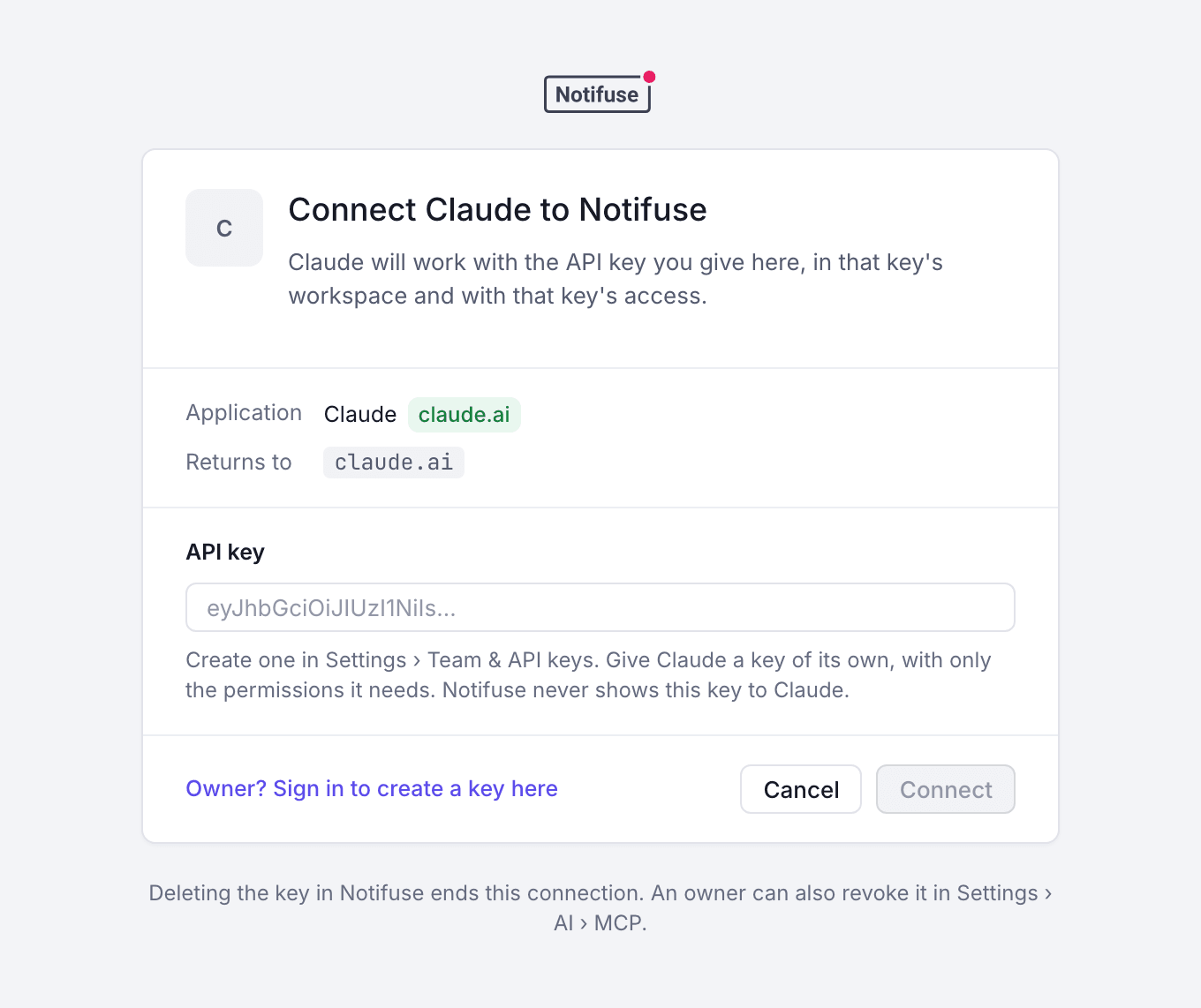
Paste an API key
Paste the key in API key and click Connect. The client then works with that key, in its workspace and with its access. Notifuse keeps a record of which key backs the connection but never stores the key itself, and never shows it to the client.
Only an API key works here. Sign-in links and invitations are refused. Cancel sends you back to the client without connecting.
Create a key for this agent
An owner signed in to the console can create the key on the page instead of pasting one. Click Create a key for this agent (anyone else sees Owner? Sign in to create a key here), then choose:
- the Workspace, among those you own. A workspace marked MCP off can’t be picked;
- the API Key Name, filled in from the application’s name;
- the Permissions. Without the Granular permissions licence, only full access is possible.
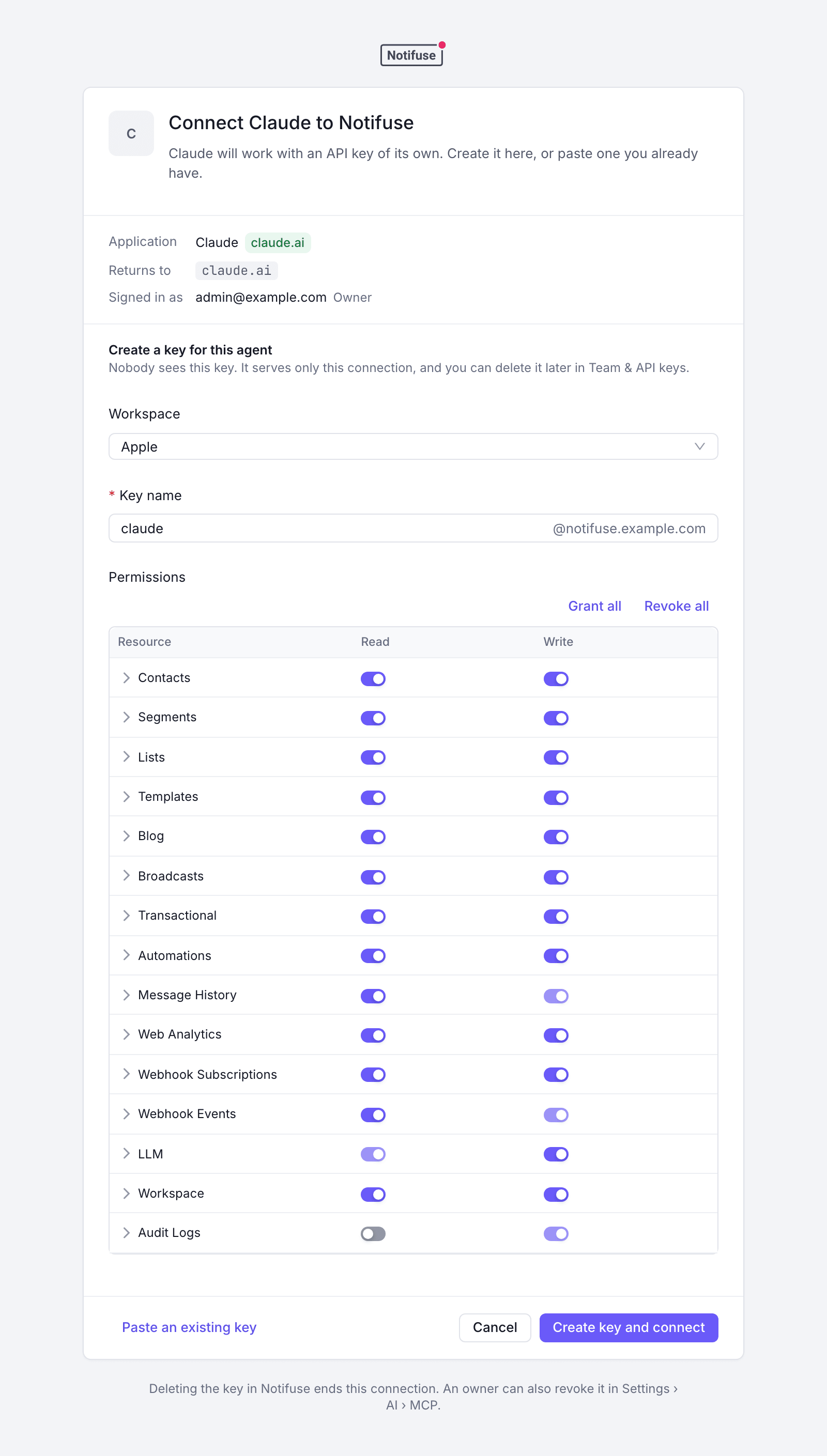
Click Create key and connect. Before it creates a key with full access, Notifuse asks you to confirm and names the workspace and the application’s address. Nobody ever sees the new key. It serves only this connection, and you can delete it later in Settings → Team & API keys. Paste an existing key goes back to the key field.
If you usually sign in on a workspace’s custom domain, you may need to sign in again on this page, which runs on the API_ENDPOINT host.
When the server requires two-factor authentication and your account doesn’t have it yet, the page can’t create a key. Set up two-factor authentication first, or paste an existing key: pasting needs no sign-in. See Two-factor authentication.
What the page checks
- A request lasts 10 minutes and works once. After that, the page says the request can’t continue: go back to the client and connect again.
- You must finish in the browser you started in. A request started in another browser is refused, so nobody can send you a link to approve their own request.
- Only claude.ai and chatgpt.com are known applications. Any other application shows Unknown, with a name chosen by whoever published it, so check the Published at address before you connect.
- When the application returns to a program on your own computer, as a terminal client does, the page warns you. Connect only if you started the connection yourself, just now.
- An application that asks to return to an address that is not a web page is refused.
Manage access
Owners manage MCP in Settings → AI → MCP.
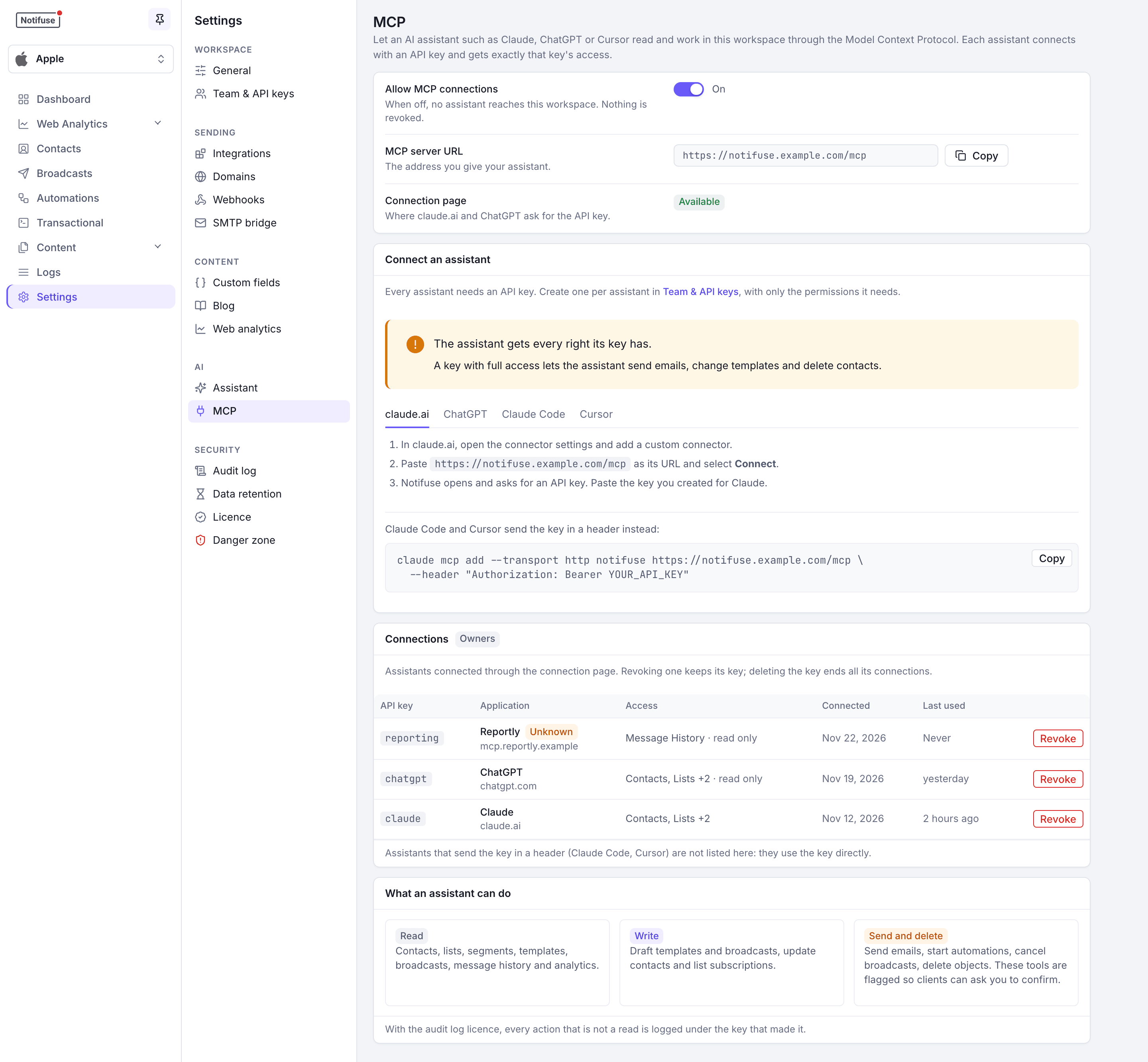
Turn MCP off for a workspace
The Allow MCP connections switch is on by default. When an owner turns it off, no client reaches the workspace, whatever key it uses: calls answer as if the workspace didn’t exist. Nothing is revoked, and turning it back on restores every connection. API keys keep working on the API.
Connections
The Connections table lists the clients connected through the connection page: the API key, the Application, the key’s Access, when it Connected and when it was Last used. Only owners see it.
Revoke ends one connection and keeps the key. Clients that send the key in a header, such as Claude Code and Cursor, are not listed: they use the key directly, and only deleting the key stops them.
Deleting an API key in Settings → Team & API keys ends every connection made with it. That page also shows, for owners, the Connected applications of each key.
A connection unused for 90 days stops working, and the client must connect again.
Risks to know
A client reads contact fields, message content and blog posts, and text in them can carry instructions the model may follow. Such text could get the model to send workspace data to an outside address, with a tool that sends or by changing a template that live emails use. The confirmation flags are only hints to the client. A key with read permissions only is the one firm barrier, and it needs the Granular permissions licence.
What a client reads, contact data included, goes to the company that runs its model. Connect only clients whose terms you accept. To keep a workspace out, turn its switch off. To turn MCP off for the whole server, see Self-hosting.
A connection belongs to its key and outlives the person who made it. Anyone holding a key can connect any client until the key is deleted, so review the Connections table from time to time.
Audit log
With the Audit logs licence, every MCP tool call that is not a read is recorded in the audit log, refused calls included. Each entry names the API key and the tool, and the application for a connection made on the connection page. Approving and revoking connections are recorded too.
Without the licence, nothing is recorded, so there is no trace of what a client changed or sent.
Self-hosting
MCP is on by default from 45.0. Two environment variables control it:
| Variable | Description | Default |
|---|---|---|
MCP_ENABLED | false turns off /mcp and its connection page for the whole instance. The MCP page then says MCP is turned off | true |
MCP_ALLOWED_ORIGINS | Extra browser origins allowed to call /mcp, comma separated, such as a local MCP Inspector. Each entry is an origin (scheme://host[:port]), and Notifuse refuses to start with * or a path. Requests sent without an Origin header, as hosted clients send them, are not affected | - |
MCP is always off on the demo instance.
The connection page needs API_ENDPOINT to use https and to have no path, such as https://emails.yourcompany.com. An http address on localhost, 127.0.0.1 or ::1 is also accepted for local testing. Otherwise the MCP page shows the connection page as Unavailable, and only clients that send the key in a header can connect.
/mcp answers only on the API_ENDPOINT host. A reverse proxy in front of Notifuse must forward the original Host header.
Rate limits
| Limit | Applies to |
|---|---|
| 120 calls per minute | Each API key, shared by every connection made with it |
| 30 calls per minute | Each API key, for tools that send email or can lead to an email, such as subscribing a contact or changing a template |
| 60 per minute | Each IP address, for requests to /mcp with an invalid key or token |
| 30 per minute | Each IP address, for connection requests |
| 20 per minute | Each IP address, for keys pasted on the connection page |
| 600 per minute | Each IP address, for token requests |
| 10 per minute | Each authorization code or refresh token |
Limits are counted in each Notifuse process, so running several API containers multiplies them. Hosted clients such as claude.ai call from shared addresses, so the per-IP limits apply to all their users together.
Per-IP limits read the first address in X-Forwarded-For. Configure your proxy to overwrite that header, or a caller can choose its own address.